Slow data? Lock one network
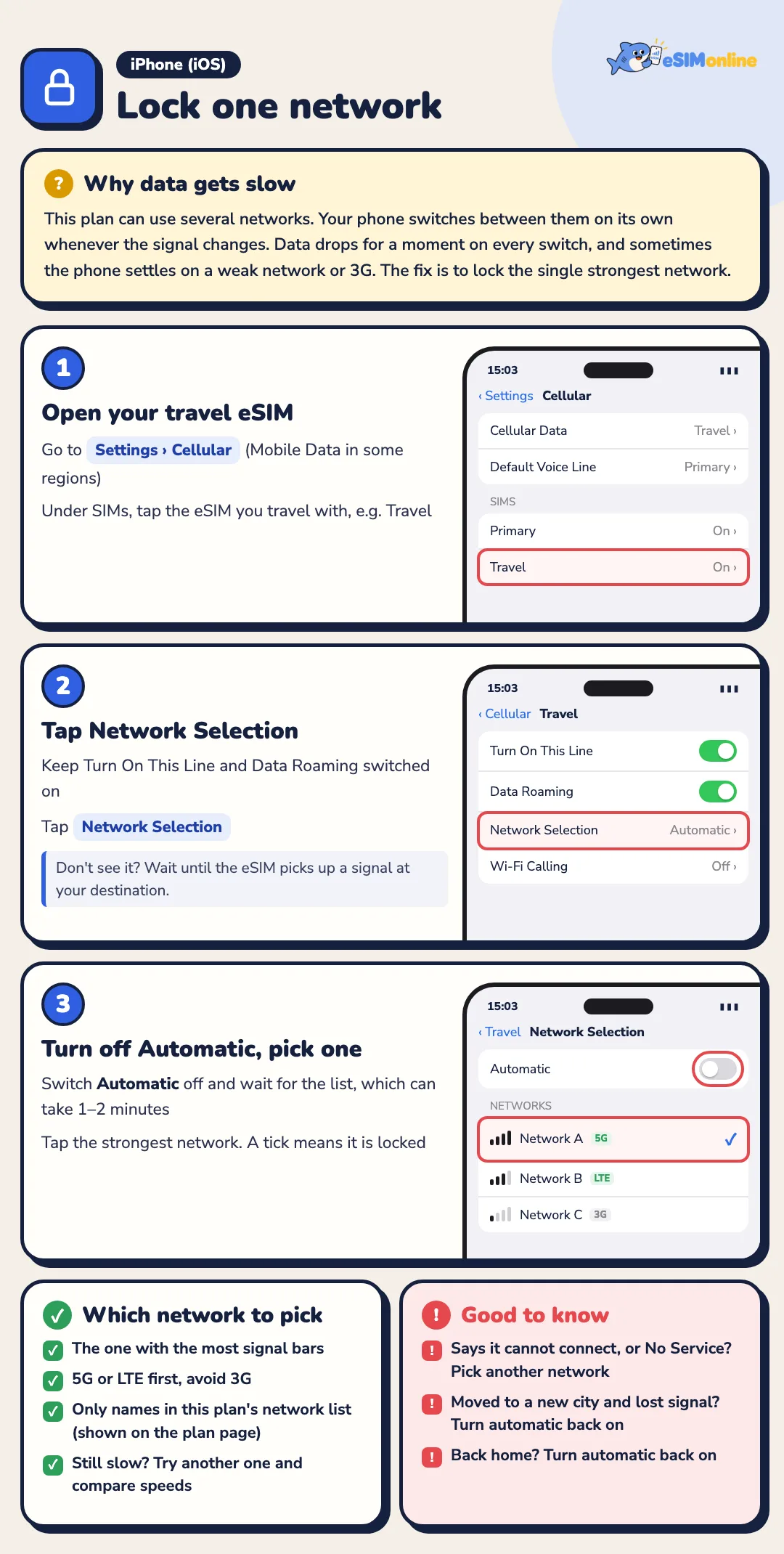
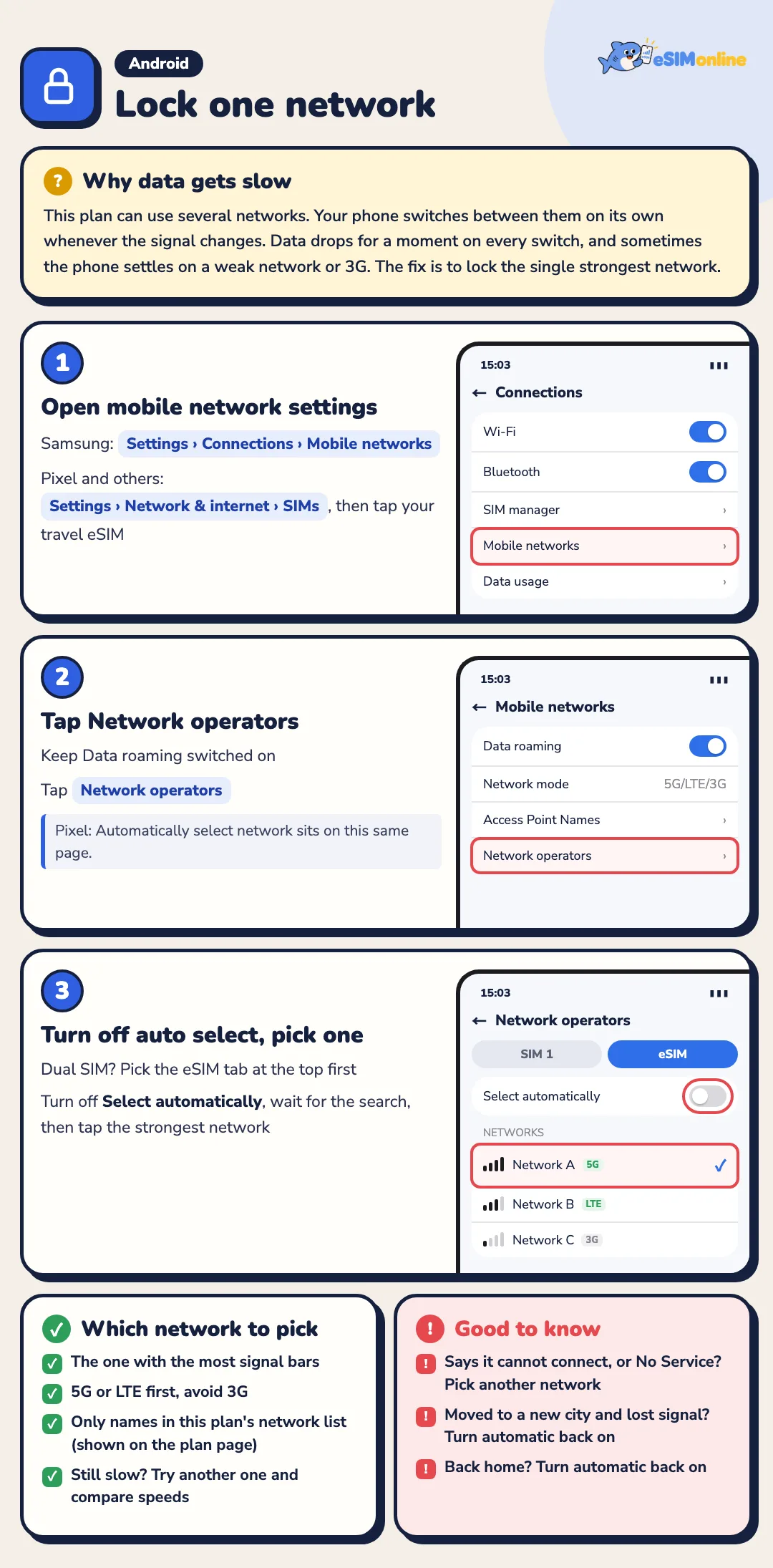
This plan can use several networks, and your phone switches between them on its own whenever the signal changes. Data drops for a moment on every switch, and sometimes the phone settles on a weak network or 3G. If data is slow, turn off automatic selection and lock the single strongest network.
iPhone
- Go to Settings › Cellular and tap your travel eSIM under SIMs
- Keep Turn On This Line and Data Roaming on, then tap Network Selection
- Turn off Automatic, wait 1–2 minutes for the list, then tap the strongest network. A tick means it is locked
Android
- Samsung: Settings › Connections › Mobile networks. Pixel and others: Settings › Network & internet › SIMs, then tap your travel eSIM
- Keep Data roaming on, then tap Network operators (on a Pixel the setting is on this same page)
- On a dual-SIM phone pick the eSIM tab first. Turn off Select automatically, wait for the search, then tap the strongest network
Which network to pick
- Pick the most signal bars, 5G or LTE first, and avoid 3G
- Only pick names from this plan's network list above. If it says it cannot connect or shows No Service, pick another
- Still slow? Try another one, compare speeds and keep the faster
- Lost signal after moving to a new city, or back home? Turn automatic back on