
Getting online within five minutes of landing
The right sequence has you booking a ride before you leave the terminal.
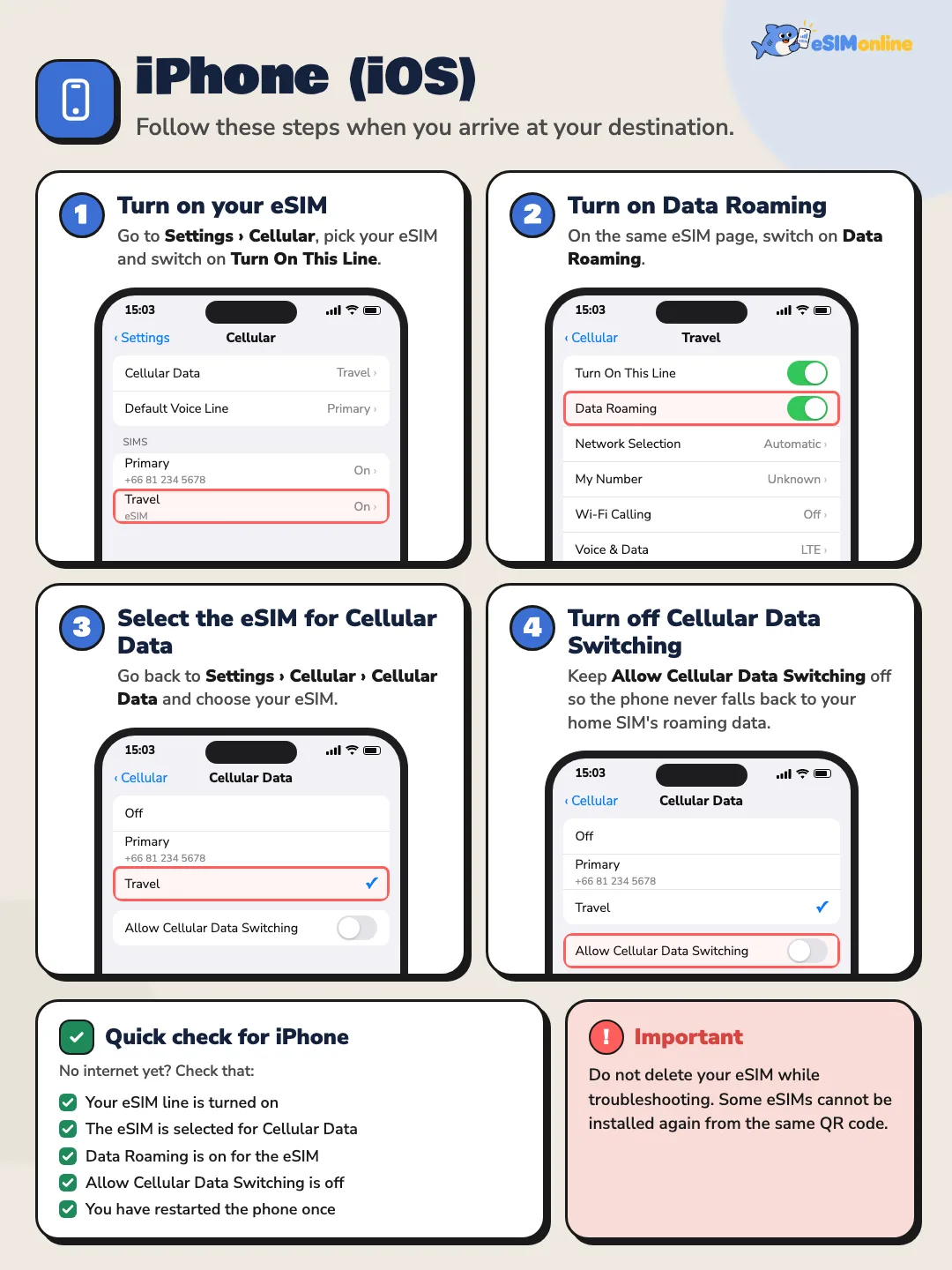
Quick answer
- Enable the eSIM line as soon as you land and leave airplane mode.
- Confirm a local network name appears before leaving the terminal.
The sequence
- Leave airplane mode after touchdown
- Enable the eSIM line and set it as data
- Enable data roaming on that line
- Wait a minute or two for network registration
- If nothing appears, toggle airplane mode once more

If there is still no signal
Use airport Wi-Fi to reach us on LINE with your order number and phone model. Nearly every case is resolved by a setting or a manual network selection.
Why the order of steps matters more than it seems
Many people assume switching off airplane mode and waiting a moment is enough to get signal automatically, and sometimes it is. In several cases, though, the phone can attach to whichever line responds first, and if the home line has not been set to skip roaming, it can end up attaching there without you noticing, only for you to realise later there is no usable data because the wrong line is the one attached.
The sequence given earlier, leaving airplane mode, enabling the eSIM line, setting it as the data line, then turning on roaming for that line, has a reason behind every step. Setting the eSIM as the primary data line before turning roaming on reduces the chance the phone attaches somewhere unintended, and waiting for network registration to finish before trying anything else cuts down confusion about what is actually causing a lack of signal.
Telling "no signal" apart from "not yet registered on the network"
A phone's status bar carries several states that look similar but mean different things. Genuinely no signal usually shows as a clear label or an icon with a cross through it, while actively searching for a network usually shows as a spinner or temporary ellipsis, which is normal in the first minute or two after landing and not a sign of trouble.
| What appears | What it means | What to do |
|---|---|---|
| A spinner or a "searching" label | The phone is actively searching; this is not yet a problem | Wait a minute or two |
| Shows "No service" or "SOS only" | No network at all is being found in this location | Toggle airplane mode, then move further into the terminal |
| A network name appears but no data icon | Voice is attached but data roaming is off, or that line is not set as the data line | Check the data-roaming toggle and the primary data line in settings |

Can the internet be used while queueing at immigration?
The phone operates entirely independently of the immigration process, so activating an eSIM while queueing works exactly as normal; there is no rule against using a phone while waiting in the passport line. What is realistic to expect is that speeds may not be very high during that stretch, since it is a spot where passengers from several flights are all trying to connect in the same space at once.
Why some plans register on the network more slowly than others
How quickly a plan registers on the network does not depend on the phone alone; it also depends on the roaming agreement between the plan's provider and the visited network. Some agreements register almost instantly, others go through extra verification steps that take a little longer, which is simply how roaming systems work generally and not a sign that a plan has a fault.
If the eSIM failed to activate before departure
Sometimes the installation or activation step fails back at home, and it only becomes obvious after arrival. This is solved by using airport Wi-Fi as a bridge first, then contacting the team to check and fix things remotely.
- 1Connect to airport Wi-FiMost airports offer free Wi-Fi for passengers throughout the terminal.
- 2Contact the team right awayMessage LINE at https://lin.ee/skDPoNx or email esimonline.asia@gmail.com with the order number and a description of what is happening.
- 3Give the phone model and OS versionThis helps the team pinpoint exactly which step the problem sits at.
- 4Follow the guidance given backNearly every case is resolved by adjusting a setting or selecting the network manually, without needing to buy a new plan.

What is on offer at the airport: airport Wi-Fi, an eSIM, or a physical SIM from a counter
| Option | Strength | Limitation |
|---|---|---|
| Airport Wi-Fi | Available immediately without waiting for a mobile network connection | Only works inside the terminal, and speed varies with how many people are on it |
| A pre-installed eSIM | Works beyond the airport building and for the rest of the trip afterwards | Requires network registration before it is actually usable, which can take a short while |
| A physical SIM from an in-airport counter | Staff on site can help install it directly | Involves queueing and swapping the physical SIM in the phone, unrelated to an eSIM already purchased |
The most common day-one mistakes
The most common mistake is rarely anything technically complex; it is a small step forgotten, such as turning off airplane mode but leaving data roaming off on the eSIM line, or turning roaming on while the primary data line is still set to the home SIM. Both look like no signal at all, when in fact part of the connection is already working.
Confirming data roaming is actually on, not just that airplane mode is off
Turning airplane mode off only switches the radios back on; it does not always turn data roaming on automatically. The two are separate toggles in separate menus. Seeing a local network name on the status bar only confirms voice attachment, not that data is actually usable yet.

What to check before leaving the terminal
- A local network name showing on the status bar, not just the airport's Wi-Fi icon
- The trip eSIM line set as the primary data line
- Data roaming switched on for that line
- Opening a maps app or messaging app to confirm data actually works, not just voice attachment
Booking a ride while signal is still unstable
If offline maps were downloaded ahead of the trip, that portion still works even while signal is unstable. Most ride-hailing apps only need a short burst of data to send the request and confirm location, so they often manage even before signal fully settles, unlike video streaming, which needs a continuous connection.
When the airport itself has patchy coverage
Some terminal buildings have spots with weaker signal than others, such as underground areas or sections shielded by thick metal structures, and there are moments when several wide-body flights land close together, pushing many passengers to connect in the same space at once. These are factors of the location and the timing, not a fault in any one plan or handset.

If the destination requires extra SIM registration steps
Some countries impose extra registration steps for SIMs or eSIMs used within them, a requirement set by that country's own regulator, not something the plan's provider or this site decides. If such a step appears, follow whatever the on-screen instructions say, or contact the team if it is unclear whether what is being asked for is a normal part of that country's process.
When to stop troubleshooting and contact the team
If every step above has been followed, two to three minutes have passed, and airplane mode has been toggled with still no working data at all, that is the point to stop guessing and contact the team via LINE at https://lin.ee/skDPoNx or by email at esimonline.asia@gmail.com, with the order number, phone model and symptom, so the issue can be looked into properly together.
Preparing before boarding so the steps after landing go faster
Several of the steps needed after landing can be prepared well before departure, such as finishing the eSIM installation before travel day, labelling the line clearly as the trip line, and downloading offline maps for the destination city in advance. All of this can be done while still on Wi-Fi at home or at the departure airport, and it cuts down the number of things left to do while actually standing in the arrival terminal.
Checking before boarding that the eSIM line still shows as ready in the settings menu is another small step that helps a lot, since the line can sometimes get switched off unintentionally beforehand, say while testing some other setting. Seeing it show ready before boarding rules out a problem unrelated to travel from the start, rather than discovering after landing that the line had been switched off.
The first hour after landing: an order of operations that works
What slows people down on arrival is rarely the eSIM itself; it is doing everything at once while still walking off the aerobridge. Split it into two stages instead. At home: install the profile, label the line so you recognise it, and decide which line carries data. On arrival: turn off aeroplane mode, switch the eSIM line on, and give the phone a moment to attach before you touch anything else. Opening a ride-hailing app while the phone is still searching is the usual reason someone concludes the plan is broken when it simply had not finished attaching.
If the signal has not arrived yet inside the terminal
Some terminals simply have weak spots, especially deep inside the baggage hall. If the phone still cannot find a network, walk towards an exit or a more open area before concluding that the plan is at fault. Then work through the sequence: toggle aeroplane mode, restart once, and select a network manually. If all of that fails, message us with the phone model and the network names showing in the list.
Preparation that makes the first hour easy
There are only a handful of jobs you can do at home, but they carry most of the weight: install the profile, label the line so it is obvious which is which, download the destination city's offline map, and save the accommodation address in that map beforehand. Do those four and the first hour after landing comes down to switching the line on and walking out of the terminal.
FAQ
How many minutes after landing should it take to see signal?+
Most of the time it takes no more than one or two minutes after turning off airplane mode and enabling data roaming. If several minutes pass with nothing at all, try toggling airplane mode again before assuming there is a fault.
Can airport Wi-Fi be used instead of an eSIM for the whole trip?+
It only works while inside the terminal building. Once you leave, that Wi-Fi is no longer reachable, so an eSIM is what carries connectivity outside the building and for the rest of the trip.
Why did a travelling companion get signal faster than I did?+
It can come from the phones attaching to different operators in the same country, or from one person finishing the roaming-data setup earlier. How fast registration happens does not necessarily mean one plan is better than another.
If there is still no signal after trying every step, what next?+
Contact the team via LINE at https://lin.ee/skDPoNx or by email at esimonline.asia@gmail.com with the order number and phone model. Nearly every case is resolved by adjusting a setting or selecting the network manually.
Is manually selecting the network necessary, or is leaving it automatic enough?+
Automatic mode is enough for nearly every case. Manual selection only helps when the phone has attached to an operator that does not support that plan, which is uncommon and is usually fixed by toggling airplane mode first.
Sources
- Set up eSIM on iPhone — Apple Support, October 18, 2026
- About cellular data roaming options for your iPhone and iPad — Apple Support, October 18, 2026
- Connect to mobile networks on a Pixel phone — Google Pixel Help, October 18, 2026
About the author

Porsch Kunnipat Siramanakul
- Co-founder of eSIMonline.asia
- Digital marketer
- Performance marketing and marketing planning
Instagram and TikTok have no web share button, so we open your phone's share sheet or copy the link instead.