
What do I do right after landing?
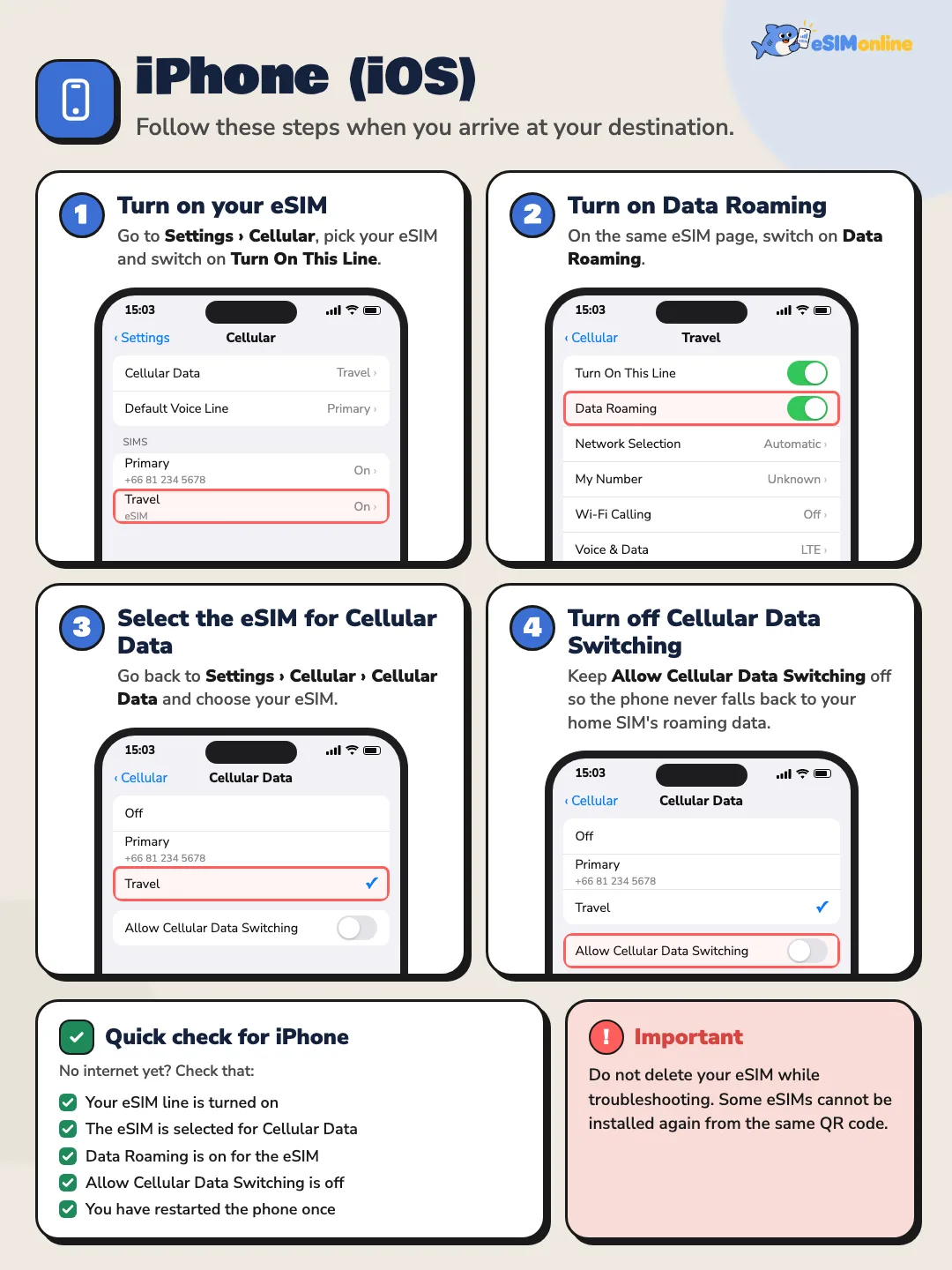
1) turn on the eSIM line, 2) set mobile data to it, 3) enable data roaming for it, 4) disable data roaming on your home SIM, 5) toggle airplane mode once. You normally have service within a minute or two of leaving airplane mode.
This question covers the single most important few minutes of using an eSIM at all, because everything done before it — buying, installing, checking the terms — comes down to what happens in the minutes after the wheels touch the ground. This page walks through each step, explains why the order matters, what each step technically does, and how to troubleshoot if any one of them does not go as expected.
The order given is: turn on the eSIM line, set mobile data to that line, enable data roaming for it, disable data roaming on your home SIM, and toggle airplane mode once. This sequence is not arbitrary; each step addresses a different point of failure, and reordering it can lead to unintended charges or a slower connection than necessary.

Why the order matters
If you toggle airplane mode off first without setting anything up, there is a risk your home SIM attaches to a foreign network before the eSIM line does, and starts roaming on your original carrier's rates even though the eSIM plan was meant to be the one in use. Getting every setting sorted first, then toggling airplane mode once, is safer, because once you leave airplane mode both lines attempt to attach at the same moment according to the settings already in place.
The steps to take right after landing
- 1Turn on the eSIM lineGo into Settings, Mobile Service or Cellular, and switch the eSIM line on. If the profile was installed earlier, this line may sit switched off by default until you turn it on yourself.
- 2Set mobile data to the eSIM lineIn the same menu, find the mobile data or cellular data selector and choose the eSIM line as the one used for data, not your home SIM.
- 3Enable data roaming for the eSIM lineGo into that specific eSIM line's own settings and turn data roaming on. This step is necessary because a travel plan connects via a partner network abroad, which technically counts as roaming.
- 4Disable data roaming on your home SIMSwitch back to your home SIM and turn off its data roaming completely, to prevent it connecting to data abroad by accident, which can carry a high cost.
- 5Toggle airplane mode onceSwitch airplane mode on and then off once, forcing the phone to search for and attach to networks fresh, according to the settings just made. You would normally have service within a minute or two.

How the menus differ between iOS and Android
The menus described above have slightly different names and locations between operating systems, and even among Android phones the wording differs by manufacturer and Android version. The description below is the general shape most phones follow, not a fixed location identical on every device.
| System | General menu path |
|---|---|
| iOS | Settings → Mobile Service / Cellular → select the eSIM line to turn it on and set it as the data line → open that line to enable data roaming |
| Android | Settings → Network & internet → SIMs → select the eSIM line to turn it on and set it as the data line → enable data roaming on the same screen or under mobile network settings |
Understanding "turning on the eSIM line"
When a profile installs successfully, the phone creates a new entry in its list of cellular lines, but that line may not be switched on by default; you need to turn it on yourself in the cellular menu. Turning it on does not mean data starts flowing immediately — it only makes the line ready to connect. Which line actually carries data is a separate setting.

Why the eSIM line needs data roaming enabled at all
The confusing part for many people is why a plan bought specifically for travel still needs "data roaming" switched on when it should just work. The answer is that roaming, technically, means connecting via a network that is not that SIM's home network. A travel plan connects through a partner network in the destination country, which always counts as roaming regardless of whether the plan was designed specifically for abroad. The operating system still requires this switch to confirm you genuinely intend that kind of connection.
Disabling home SIM roaming to avoid bill shock
This step matters just as much as setting up the eSIM line, because forgetting to disable roaming on your home SIM risks that SIM connecting to data abroad quietly in the background, especially when apps try to sync or auto-update. Home SIM roaming charges are not covered by the travel plan you have bought, and can run at rates far higher than ordinary domestic use.

What the airplane mode toggle actually does
Toggling airplane mode forces the phone's radio to reset its network search entirely, rather than continuing to try attaching to whatever network it remembered from before boarding. Once every setting above is in place, this toggle is what triggers the system to search fresh according to the latest configuration rather than whatever was cached beforehand.
How long it takes to get signal
The phone would typically find signal and connect within a minute or two of leaving airplane mode, though this depends on how many other passengers are trying to do the same thing at once, such as everyone off one flight attempting to connect simultaneously, which can push it slightly longer than usual. If several minutes pass with nothing at all, that is the point to start troubleshooting.

What to do if there is still no signal
First confirm that the data line is genuinely set to the eSIM, and that roaming for that line is on, rather than having reverted to your home SIM by accident. Then try toggling airplane mode once more. If that does nothing, try a full device restart, which forces every system to reinitialise, including the radio. If there is still no signal after that, check that the plan has not expired and still has data remaining, then contact support with your device model and the symptom described.
Dual-SIM behaviour and default line settings
Dual-SIM phones usually let you set which line handles data, which handles outgoing calls, and which handles SMS, all separately. A common source of confusion is setting data correctly but forgetting there is a separate "line for calls" setting that may still point at the home SIM, so calls continue on the home SIM as normal while data runs on the eSIM — which is in fact the correct behaviour for most plans, since they are data-only.
What to know about messages and calls
Most travel plans are data-only and provide no local phone number. Calls and SMS therefore continue to work through your home SIM as usual, provided it stays enabled in the phone, even with its data roaming switched off, because disabling data roaming does not switch off call and SMS reception, which run over a different signalling path. Internet-based messaging such as iMessage or chat apps runs over the eSIM line as normal, since it relies on data.
- Confirm the eSIM line is on and set as the data line before toggling airplane mode
- Disable home SIM data roaming thoroughly, ideally before boarding
- Wait a minute or two after toggling airplane mode before concluding there is a problem
- If using dual SIM, check the line used for calls separately from the line used for data
Common post-landing symptoms and fixes
| Symptom | Likely cause | What to do |
|---|---|---|
| No signal at all after leaving airplane mode | The eSIM line has not been turned on, or its data roaming is not enabled | Check both settings in the cellular menu, then toggle airplane mode again |
| Signal shows but internet does not work | The data line is still set to the home SIM, not the eSIM | Reset the mobile data line to the eSIM, then wait briefly |
| Charged for home SIM roaming despite intending to use the eSIM | Forgot to disable home SIM data roaming before arrival | Disable home SIM roaming immediately, then check the bill with your home SIM's own carrier |
| Cannot receive incoming calls | The home SIM line has been switched off entirely instead of just disabling its data roaming | Turn the home SIM line back on and disable only its data roaming, not the whole line |
Why these steps have to be done by hand every time
Many people wonder why the phone does not automate all of this. The reason is that operating systems are deliberately designed to leave any decision with cost implications in the user's hands, and roaming almost always carries different charging implications from ordinary domestic use. Silently turning on data roaming without asking would put a manufacturer in the position of making a spending decision on your behalf, which none of them want to do. So every time you travel to a new country or start a new plan, the system asks you to confirm the settings again yourself.
That is why the five steps in this page are not a one-off task done once and forgotten, but something repeated at the start of every new trip or whenever you switch to a new plan on a new profile. Repetitive as it may feel, once it becomes familiar it takes under a minute, and it guards against both unintended charges and a delayed connection.
FAQ
Do the steps have to happen in this exact order?+
It is best to finish every setting first and toggle airplane mode last, to reduce the risk of the home SIM attaching to a foreign network before the settings are complete.
What happens if home SIM roaming was left on for a while by mistake?+
Some data may have connected in that window outside the travel plan you bought. Disable it the moment you notice, then check charges directly with your home SIM's own carrier.
Why enable data roaming at all when this plan was bought specifically for abroad?+
Because connecting via a partner network abroad always technically counts as roaming, regardless of whether the plan was designed for use abroad. The operating system still requires the switch to be on.
Can I still receive calls if home SIM data roaming is off?+
Yes, normally, since disabling data roaming does not affect call or SMS reception, which use a different signalling channel, as long as the home SIM line itself remains enabled.
If ten minutes pass with no signal, what should I do?+
Recheck the data line and roaming settings for the eSIM, try toggling airplane mode again, then try a full restart. If none of that works, contact support with your device model and what you have already tried.
Does the plan come with a local phone number?+
Most travel plans are data-only and do not include a local phone number. Calls continue to run through your home SIM as normal.
On a dual-SIM phone, if the result does not match what was set, what should be checked first?+
Check that the line set for data and the line set for calls are genuinely configured the way you intended, since those are two separate settings in the menu.
Sources
- Set up eSIM on iPhone — Apple Support, October 18, 2026
- Using Dual SIM with an eSIM — Apple Support, October 18, 2026
About the author

Bob Kanokphon Thongdee
- Co-founder of eSIMonline.asia
- More than 7 years in online marketing
- Founder of Cojourney Visa and Cojourney Travel
Instagram and TikTok have no web share button, so we open your phone's share sheet or copy the link instead.