
How to install an eSIM, step by step (iPhone and Android)
Finish the install on home Wi-Fi before you fly, then switch it on when you land as the package instructs.

Quick answer
- Install on home Wi-Fi as soon as the QR code arrives; it takes about five minutes.
- No need to keep the eSIM line off; just enable it at your destination as the package instructs.
- Never delete the eSIM: most QR codes install only once.
The steps are split by phone, so jump to the iPhone or Android section. Do them on Wi-Fi before you leave; the whole thing takes under five minutes, and once installed, all that remains is switching it on at your destination.

Installing an eSIM on iPhone (iOS)
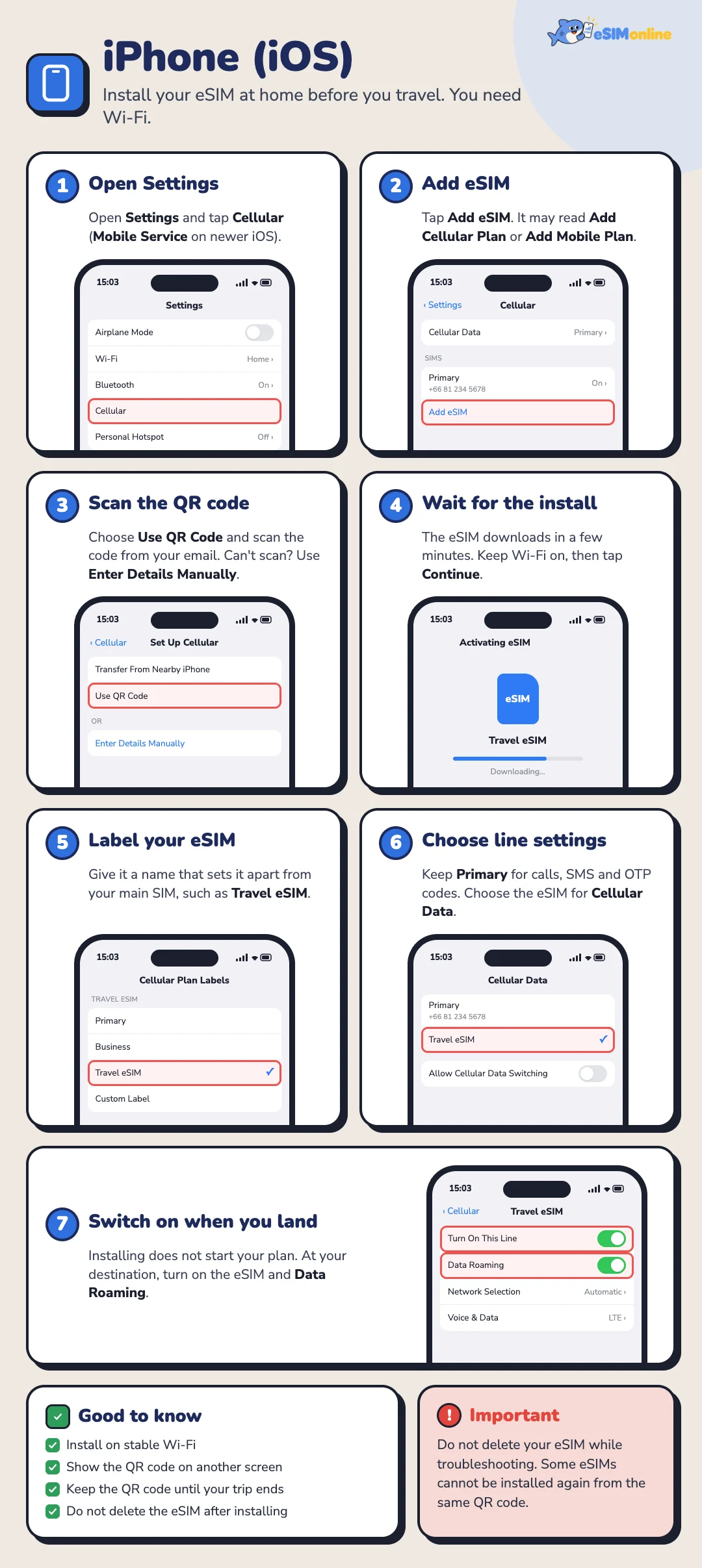
Install before the trip and it is ready the moment you land. Follow the screens below one at a time.
- 1Open SettingsOpen the Settings app and choose Mobile Service (called Mobile Data on some iOS versions).
- 2Add eSIMTap Add eSIM (if the phone already has a SIM, the option may be called Add Mobile Plan or Add Cellular Plan).
- 3Scan the QR codeChoose Use QR Code and scan the code from your email or order page. If scanning is not possible, choose Enter Details Manually and type the code in.
- 4Wait for the installThe phone shows Downloading eSIM. Tap Continue and wait; it takes about one to three minutes. Stay on this screen while it runs.
- 5Name the eSIMGive it a name you will recognise at a glance, such as Japan eSIM, Korea eSIM or Travel eSIM.
- 6Set which line does whatSet Mobile Data to Travel eSIM and Default Voice Line to your primary (Thai) SIM so calls and OTP messages still arrive as usual.
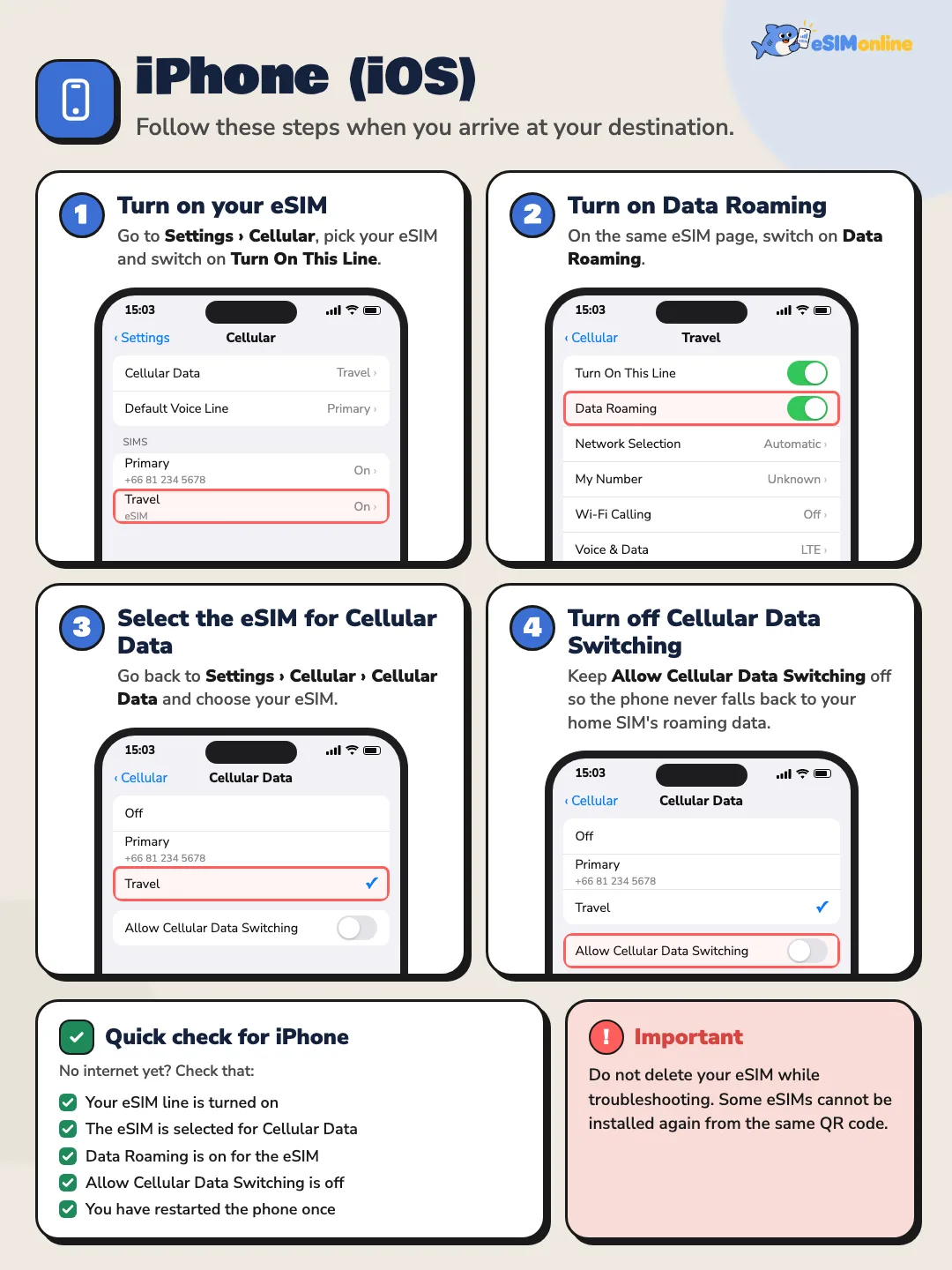
- 7Switch on at your destinationWhen you arrive, turn the Travel eSIM line on and enable Data Roaming for the eSIM line, then wait one to five minutes for signal.
Tips for iPhone
- Install while connected to Wi-Fi at home or work so the profile downloads fully.
- Keep the QR code email and activation code until the trip is over.
- Do not delete the eSIM during the trip; most QR codes install only once.
- If you carry eSIMs for several countries, name each one clearly so you never switch on the wrong line.
If the install fails on iPhone
- Check the phone supports eSIM (iPhone XS, XR or newer, and not carrier-locked).
- Make sure Wi-Fi stays connected for the whole install.
- Confirm the QR code has not already been used to install.
- Update iOS to the latest version and try again.
Installing an eSIM on Android
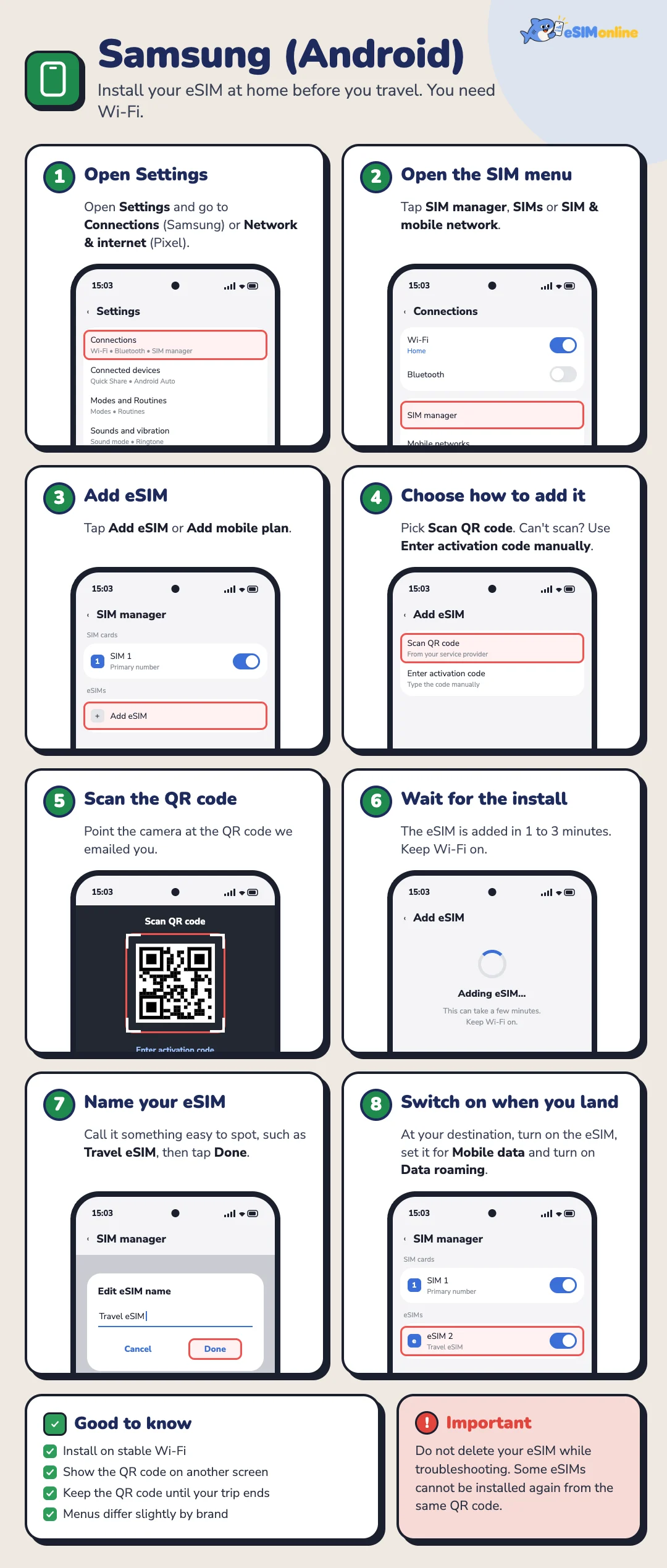
Each Android brand arranges its menus differently, but the order of steps is the same. If you cannot find a menu, type eSIM into the search box in Settings.
- 1Open SettingsOpen Settings and choose Connections (Samsung), Network & Internet (Google Pixel) or SIM Manager, depending on the brand.
- 2Open the SIM menuChoose SIM Manager, Mobile Network or SIM & Mobile Network, then look for Add eSIM or Add Mobile Plan.
- 3Add eSIMTap Add eSIM, wait a moment while the phone searches for plans, then choose how to install.
- 4Scan the QR codeChoose Scan QR Code and scan it from your email or order page. If scanning fails, choose Enter activation code manually and type the code in.
- 5Wait for the installThe phone shows Downloading eSIM. Wait about one to three minutes, then tap Done when it finishes.
- 6Name the eSIMGive it an easy name such as Japan eSIM, Korea eSIM or Travel eSIM so it is never confused with your main SIM.
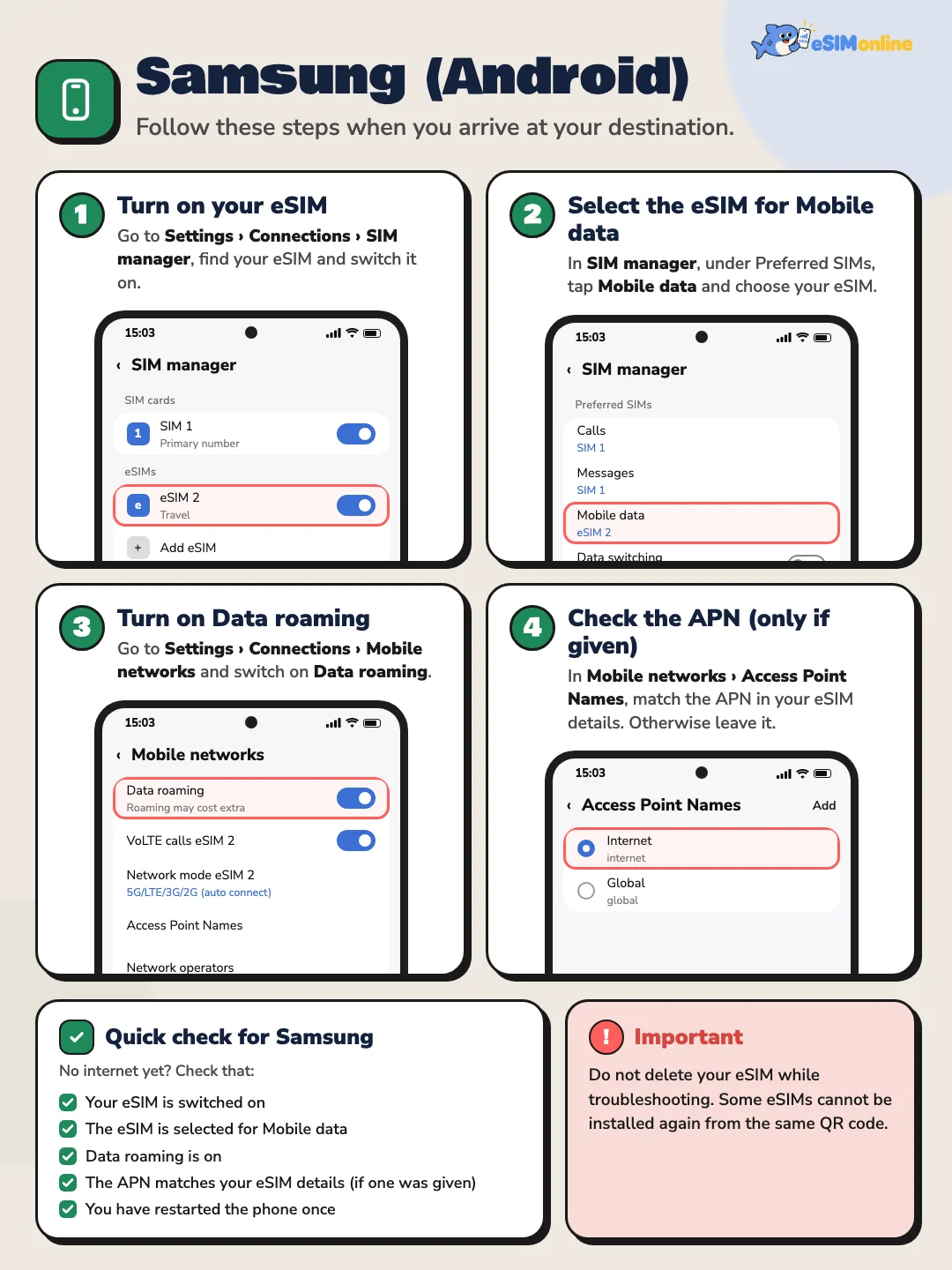
- 7Switch on at your destinationWhen you arrive, turn the Travel eSIM line on, set Mobile Data to Travel eSIM and enable Data Roaming for that line, then wait one to five minutes for signal.
Tips for Android
- Install only while connected to Wi-Fi so the profile downloads fully.
- Keep the QR code and activation code until the trip is over.
- Do not delete the eSIM during the trip; most QR codes install only once.
- Name each country's eSIM clearly so you switch on the right line when you land.
If the install fails on Android
- Check the phone supports eSIM by searching Settings for eSIM, or use our device checker.
- Make sure Wi-Fi stays connected for the whole install.
- Confirm the QR code has not already been used to install.
- Update Android to the latest version and try again.
iPhone (iOS) in short
- Once the QR code arrives, install right away on Wi-Fi via Settings, Mobile Service, Add eSIM.
- Name the eSIM clearly and keep Default Voice Line on your Thai SIM for calls and OTP.
- At your destination, set Mobile Data to Travel eSIM and enable Data Roaming on that line.
- Do not delete the eSIM after the trip unless you are sure you are done with it; most QR codes install only once.
Android in short
- Once the QR code arrives, install right away on Wi-Fi via SIM Manager or Mobile Network, Add eSIM.
- Name the eSIM clearly so it is never confused with your main SIM.
- At your destination, turn the eSIM line on, set Mobile Data to the eSIM and enable Data Roaming on that line.
- Do not delete the eSIM after the trip unless you are sure you are done with it; most QR codes install only once.

Arrival checklist
- Turn the eSIM line on (if it is not already)
- Set the eSIM as your Mobile Data line
- Enable Data Roaming on the eSIM line
- Turn Data Roaming off on your home SIM, then wait one to five minutes for signal
Three things to have ready before you start
Almost every smooth installation starts with having the right things to hand rather than with knowing the menus. You need a stable internet connection — home or office Wi-Fi, not a flaky public hotspot; the QR code or activation details from your order confirmation email; and a reasonable amount of battery, because an installation interrupted halfway creates far more trouble than waiting twenty minutes for a charge.
It also helps to switch on do-not-disturb for a few minutes so a call or a notification does not pull you away mid-step. A screen dismissed before it says the profile is installed is one of the most common ways an installation ends up incomplete.
Confirm the phone really supports it before scanning anything
Most current models support eSIM, but some regional variants ship without it, and the same model name can hide different hardware depending on where it was sold. The most direct check is to open Settings and see whether an option to add an eSIM or download a SIM exists at all. If nothing of the sort appears, there is no menu left to guess at.
Carrier locking is a separate matter. A handset still tied to an operator contract may install a profile and then never work with it, or refuse the installation outright. The unlocking terms belong to the operator you signed with, not to us, so ask them before you buy a plan.
What you can scan the QR from
The classic installation snag is that the QR code lives on the very phone that needs to scan it. There are several ways round it and none is universally better; it depends on what you have in front of you. The easiest is to open the email on a computer or a second tablet and scan from that screen. The second is to print it on paper, which works even without a second device. The third is to skip the QR entirely and type the details in by hand.
| Method | What it needs | When it suits |
|---|---|---|
| Scan from another device's screen | A computer, tablet or second phone | The usual case at home; the fastest route |
| Scan from a printed sheet | A printer | No second device, or you want a spare to carry |
| Enter the details by hand | The server address and activation code from the email | Scanning fails, or the camera is unreliable |
| Open the installation link from the email on the same phone | An OS version that supports link-based installation | One device only, where the OS supports it |
Ways to get the profile onto the phone, chosen by what you have

Installing by hand when scanning fails
- 1Open the add-eSIM menuFind the option to add or download a SIM in Settings. If you cannot see it, search Settings for eSIM — the location differs by manufacturer and OS version.
- 2Choose to enter details manuallyOn the scanning screen there is an option to type it in instead, labelled something like Enter Details Manually or Enter Code Manually.
- 3Enter the server addressCopy the server address from your confirmation email exactly, with no extra or missing spaces.
- 4Enter the activation codeThe code is long and mixes characters that look alike, so copy and paste it rather than typing whenever you can.
- 5Wait for it to report completionDo not close the screen or switch apps while it downloads. Wait until the phone confirms the profile is installed.
- 6Label the line clearlyGive it a name that immediately says which trip it belongs to, then leave it as installed. There is no need to switch the line off: a travel eSIM does not pick up a network in Thailand. Set it as the data line and enable roaming when you land, as the package instructs.
The menu names differ from brand to brand
General installation instructions use one set of words; real phones use another, and the wording changes again after an OS update. Rather than hunting through menus, open Settings and use its search box: type eSIM or SIM and look at what comes back. That approach works on nearly every brand and requires remembering no menu structure at all.
| What you are looking for | Wording you may see |
|---|---|
| The add-profile menu | Add eSIM, Download a SIM, Add mobile plan |
| Entering without a QR | Enter Details Manually, Enter Code Manually |
| Switching a line on or off | Turn On This Line, Use SIM, Enable |
| Choosing the data line | Cellular Data, Data SIM, Default data line |
| Data roaming | Data Roaming, Roaming, International data |
Menu names depend on the manufacturer and OS version, so no single wording covers them all
Naming lines and living with several profiles
A phone that travels often accumulates old profiles, and if they all have similar names you will enable the wrong one on the day you are most rushed. A name that reads clearly — the destination plus the month, say — is far more useful than Data or Trip, because a year later you will not remember which was which.
An expired profile does no harm while its line is off, but it does occupy one of the phone's profile slots, and how many slots a phone has varies by model. If you reach the point where it refuses to store another, delete only profiles you are certain have expired — never one that is still valid, because you cannot put it back.
What to do at home and what to leave until you land
Splitting the job cleanly into these two stages is what makes an installation trouble-free. Everything that needs an internet connection belongs at home; everything that is just flipping a switch belongs at the destination. Flipping a switch needs no connection, while downloading a profile very much does.
| At home on Wi-Fi | After you land |
|---|---|
| Download and install the eSIM profile | Switch the eSIM line on |
| Name the line clearly | Turn on data roaming for the eSIM line |
| Turn off data roaming on the Thai SIM | Set the eSIM as the data line |
| Download offline maps and travel documents | Load one page before leaving the terminal |
Connection-dependent work at home; switch-flipping on arrival

What happens when you delete a profile
Deleting a profile is not the same as switching a line off. Switching off tells the phone not to use this line right now, and it is instantly reversible. Deleting removes the profile from the device permanently — and because most QR codes and activation codes install only once, deleting can mean you cannot get it back at all.
The confirmation dialogue tends to look like an ordinary question, so people tap through it without pausing. If you are troubleshooting a signal problem and feel the urge to start over, stop there and contact us first — deleting in the hope of reinstalling is the hardest kind of damage on this whole subject to undo.
When the validity period starts counting
There is no single answer here, because the terms belong to each supplier. Some plans begin counting when the profile first connects to a network at the destination; others start from a date you chose at purchase. The difference matters a great deal when you decide when to switch the line on. The terms for the plan you bought are on its page and in your confirmation email — read them before enabling the line.
What is always safe is installing the profile at home without switching the line on, because installing and starting are separate steps. If you are unsure, install now and enable the line once you have actually arrived — the order this guide recommends throughout.
One phone, several people using it
If you plan to share the connection with a group, install on the phone with the best battery life and the one that will stay with the group all day — not the phone belonging to the person who tends to wander off alone. Running a hotspot uses noticeably more battery than ordinary browsing, so carry a power bank if you intend to share all day.
Check the plan's terms on hotspot sharing before you buy, since suppliers treat it differently and the details sit on the page of the specific plan you are looking at rather than in any general summary.
If you have to change phones mid-trip
Moving an eSIM profile to a new phone is not always possible: it depends on the old device, the new one, and the terms of whoever issued the profile. Some operating systems offer a transfer feature between devices; in other cases it cannot be done at all and a new profile has to be issued, which is outside our control.
If a phone is lost or breaks mid-trip, contact us with your order number and describe what happened, and we can tell you what options that plan's terms allow. What helps in advance is keeping the confirmation email in an account you can reach from another device, rather than only on the one phone.
Check this before you call it done
- The profile finished installing and genuinely appears in the list of lines
- The line is named so you know at a glance which trip it is for
- The eSIM line stays off until you land
- The Thai SIM has data roaming off but the line is still on for SMS
- You have read the validity terms in the confirmation email
- The confirmation email is stored where another device can reach it
- The order number is noted offline on the device
With all of those ticked, the installation side is finished. What remains on arrival is switching the line on and three settings covered in the on-arrival section above — under a minute of work. And if anything does not go as expected, do it inside the terminal while airport Wi-Fi is still available to you.
FAQ
Do I need to keep the eSIM line off until I arrive?+
No. Leave it as installed: a travel eSIM does not pick up a network in Thailand and costs nothing extra. At your destination, set it as the Mobile Data line and enable Data Roaming as the package instructs.
Does the package start counting as soon as I install?+
It depends on the package. Some start at install, others at the first connection at your destination. Our package page states which before you buy.
Can I delete the eSIM and scan the same QR code again?+
Usually not, because the QR code installs only once. If you have deleted it, message us on LINE (@esimonline) with your order number.
How many days before the trip can I install the eSIM?+
You can install as soon as the confirmation email arrives, and you should, while you are still on home Wi-Fi — installing is a separate step from starting the plan. When the validity period begins depends on that supplier's terms, which are stated on the plan page and in your confirmation email, so read them before deciding when to switch the line on.
I only have one phone, so I cannot scan the QR. What now?+
Three routes: open the email on a computer or tablet and scan from that screen, print the QR on paper, or type the server address and activation code in by hand using the manual steps on this page. The last one always works as long as you have the confirmation email.
Once it is installed, do I have to switch the line on straight away?+
No, and we suggest leaving it off until you arrive, since installing does not oblige you to start. Enabling it on arrival also means the phone begins looking for local networks exactly when you need them — but do check your plan's validity terms first.
The connection dropped during installation — what should I do?+
First check whether the eSIM line appears in the phone's list of lines and whether its details look complete. If it is missing or looks wrong, do not rescan the QR yourself — contact us on LINE at https://lin.ee/skDPoNx or by email at esimonline.asia@gmail.com with your order number and where it broke off.
How many old profiles can the phone keep?+
The number of profile slots varies by model and OS version, so there is no single figure that fits every phone. If yours says it cannot store another, delete only profiles you have confirmed have expired, and never one that is still valid, since it generally cannot be reinstalled.
It installed fine but there is no signal after landing+
Check three things in order: whether the eSIM line is switched on, whether data roaming is on for it, and whether it is set as the data line. If all three are done and it still fails, toggle airplane mode once, wait five minutes, and continue with the no-signal troubleshooting guide.
Sources
- Set up eSIM on iPhone - Apple Support — Apple, October 10, 2026
- How to use dual SIMs on your Google Pixel phone - Pixel Phone Help — Google, October 10, 2026
About the author

Porsch Kunnipat Siramanakul
- Co-founder of eSIMonline.asia
- Digital marketer
- Performance marketing and marketing planning
Instagram and TikTok have no web share button, so we open your phone's share sheet or copy the link instead.